How to add bilingual subtitles to a YouTube video
A workflow that actually runs: downloading the original captions, the sentence-boundary problem when machine-translating them, adding soft subtitles with a Chrome extension or burning hard subtitles with ffmpeg, and the trade-offs I made building Suinfy.
1. Why bilingual subtitles?
Millions of videos are uploaded to YouTube every year and the great majority are in English. YouTube generates English captions automatically and, if you want, can translate them into other languages, as shown below. Very convenient.
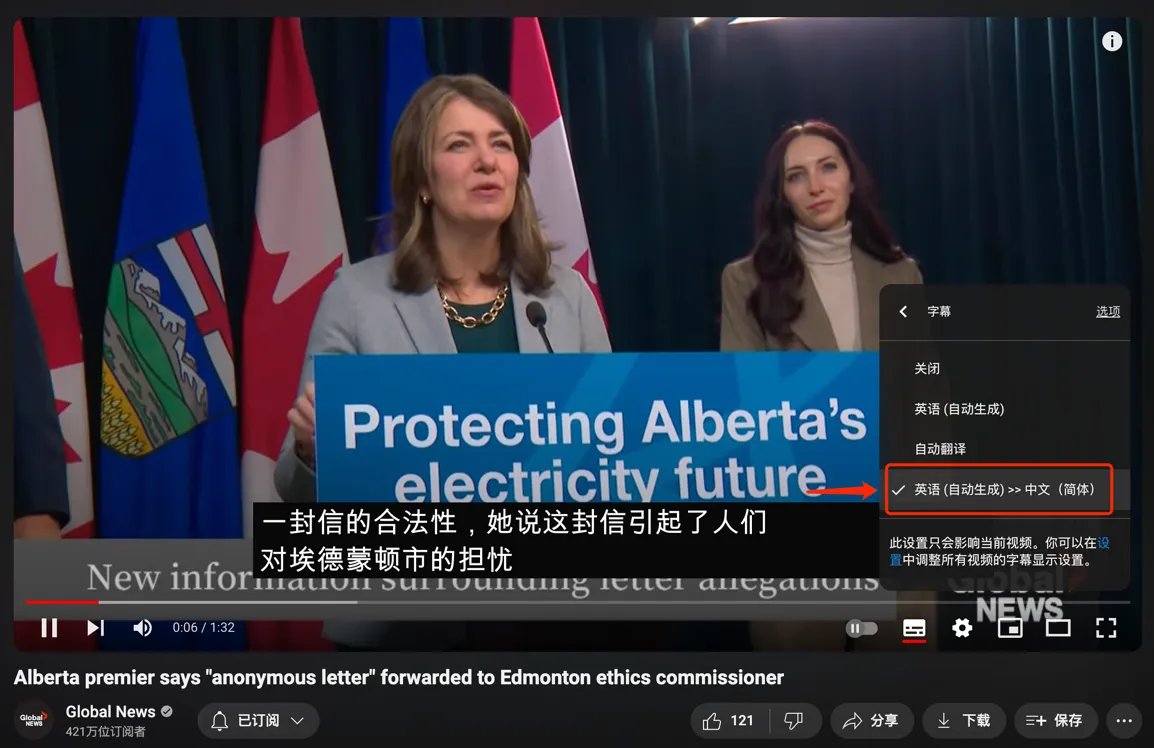
A good deal of research shows that watching YouTube videos with bilingual subtitles helps viewers learn new vocabulary, because seeing the form and the meaning of a word together makes the link clearer. An eye-tracking study found viewers spend more time on bilingual subtitles because they process both the native and the target language more deeply. That double exposure reinforces learning by tying new words to familiar ones, which improves both comprehension and retention. For comprehension, bilingual subtitles also give a direct translation to compare against the spoken dialogue.
- A Comparative Study of the Effect of Bilingual Subtitles and English Subtitles on College English Teaching
- Investigating the Effectiveness of Bilingual Subtitles for Incidental Vocabulary Learning: A Mixed Methods Study
- Watching Subtitled Films Can Help Learning Foreign Languages
- Unlocking Language Learning: The Power of Bilingual Subtitles in TV Shows and Movies
Overall, watching with bilingual subtitles is a useful tool for improving English, especially for growing vocabulary and comprehension while enjoying the video.
The other reason is reach: bilingual subtitles make a video accessible to a wider audience across language backgrounds, and improve its ranking and exposure in search.
2. How to get bilingual subtitles onto a YouTube video
This piece only covers videos that already have caption files. Videos without captions need to be transcribed first, with tools such as yt-dlp, ffmpeg and Whisper; that is option 3 in section 2.2.
The rough steps:
- Download the video’s original-language caption file
- Translate it into a target-language caption file
- Add the subtitles to the video (soft or hard)
2.1 Downloading the original captions
We’ll use the youtube-captions-scraper library. Install it:
npm i youtube-captions-scraperPass the video ID and the language code of the original captions and you get the caption data back:
import { getSubtitles } from 'youtube-captions-scraper'

const videoID = 'dJzUioqf_W0' // youtube video id
getSubtitles({ videoID: videoID, lang: 'en' }).then((captions) => {
  console.log(captions)
})
Each caption has a start time, a duration and the text:
{
  "start": Number,
  "dur": Number,
  "text": String
}
2.2 Translating the captions
With the original captions in hand we can translate them, but there is a technical snag:
YouTube's auto-generated captions break lines in odd places and carry no punctuation. Translating each line on its own, with no context, produces poor output. How do we do better?
A few approaches:
- Merge the caption text into paragraphs to raise the density, translate paragraph by paragraph for better quality, and keep the timeline aligned.
- Join all the caption text together, translate the whole thing, then split the target-language text back into segments algorithmically so the translated file lines up with the original timeline.
- Download the video, extract the audio, transcribe it with Whisper, which produces sensible sentence breaks and punctuation, then translate. Quality is good and the timeline stays consistent.
- Human translation.
None of these is perfect, so it comes down to trade-offs between time and cost, translation quality and timeline consistency. I chose option 1.
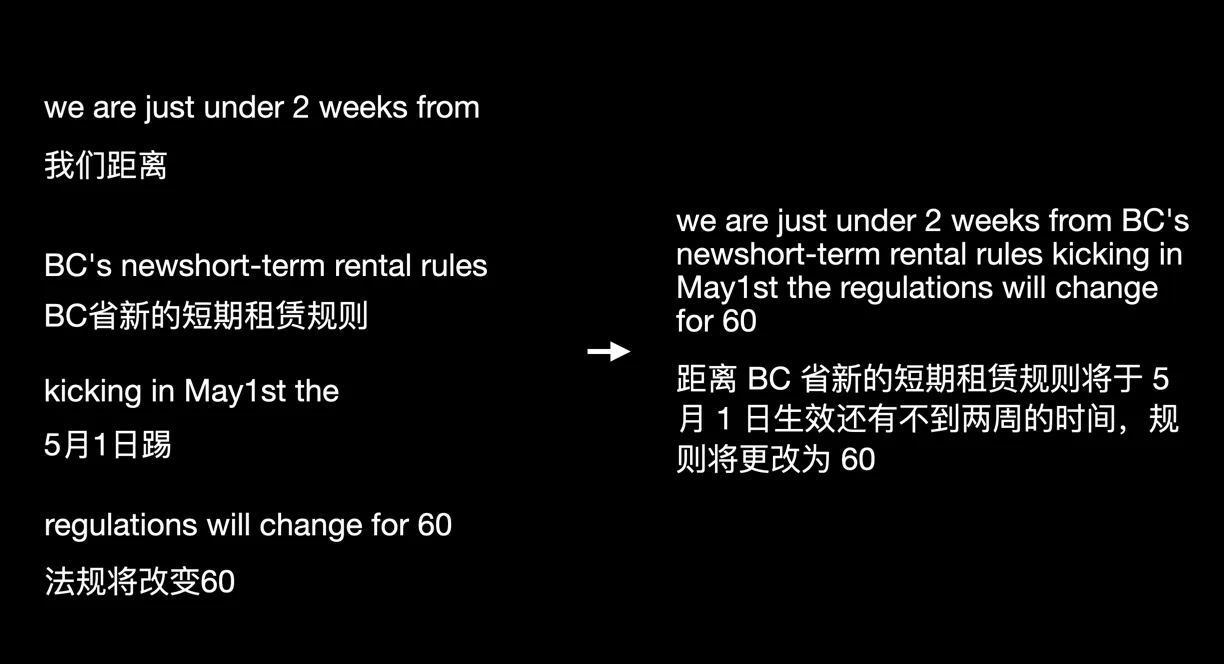
For the machine translation itself, Google Translate or Microsoft Translator both work. Install the Google Cloud Translate Node.js client:
npm install @google-cloud/translateCalling the API:
import { TranslationServiceClient } from '@google-cloud/translate'

class GoogleCloudTranslateService {
  translationServiceClient: TranslationServiceClient
  projectId: string
  location: string

  constructor() {
    this.translationServiceClient = new TranslationServiceClient()
    this.projectId = `${process.env.GOOGLE_CLOUD_PROJECT_ID}`
    this.location = 'global'
  }

  translateText = async (
    texts: string[],
    sourceLanguage: string = 'en',
    targetLanguage: string
  ) => {
    try {
      const _sourceLanguageCode = this.adapterLanguageCode(sourceLanguage)
      const _targetLanguageCode = this.adapterLanguageCode(targetLanguage)
      if (_sourceLanguageCode === _targetLanguageCode) {
        return texts
      }
      const request = {
        parent: `projects/${this.projectId}/locations/${this.location}`,
        contents: texts,
        mimeType: 'text/plain', // mime types: text/plain, text/html
        sourceLanguageCode: _sourceLanguageCode,
        targetLanguageCode: _targetLanguageCode,
      }
      const [response] = await this.translationServiceClient.translateText(request)
      if (response.translations) {
        return response.translations?.map((item) => {
          return item.translatedText || ''
        })
      }
      return null
    } catch (e) {
      console.error(e)
      return null
    }
  }

  adapterLanguageCode = (lang: string) => {
    if (lang === 'zh' || lang === 'zh-Hans' || lang === 'zh-CN') {
      return 'zh-CN'
    }
    return lang
  }
}

const googleCloudTranslateService = new GoogleCloudTranslateService()
export default googleCloudTranslateService
2.3 Adding the subtitles to the video (soft or hard)
With both caption files ready, we can show them together on the video. Either a Chrome extension injects them onto the YouTube page dynamically (soft subtitles), or ffmpeg merges them into the video file (hard subtitles).
Soft subtitles. Below is the DOM structure of a YouTube video page; JavaScript can add subtitle elements into the .ytp-caption-window-container container.
<div class="html5-video-player" id="movie_player">
  <video class="video-stream html5-main-video"></video>
  <div class="ytp-caption-window-container" id="ytp-caption-window-container" data-layer="4"></div>
</div>
var video = document.querySelector('video')
var subtitleDiv = document.getElementById('ytp-caption-window-container')
var subtitles = []
video.addEventListener('timeupdate', function () {
const currentTime = video.currentTime
const currentSubtitle = subtitles.find(
(sub) => currentTime >= sub.start && currentTime <= sub.end
)
subtitleDiv.innerHTML = currentSubtitle ? currentSubtitle.text : ''
})Hard subtitles. Suppose the original and translated captions have been merged into one .srt file. Besides .srt, the .ass format supports richer styling.
0
00:00:00,000 --> 00:00:02,240
该视频由奥尔为您带来。
This video is brought to you by Orr.

1
00:00:02,240 --> 00:00:05,440
嗨,欢迎收看《冷聚变》的另一集。
Hi, welcome to another episode of Cold Fusion.
Merge the subtitles into the video with:
ffmpeg -i $1 -vf subtitles=$2 -c:v libx264 -crf 23 -preset fast -c:a copy output_video.mp4The options:
-i input_video.mp4: the input video.-vf "subtitles=subtitles_file.srt": the video filter that adds subtitles; replace with your subtitle file.-c:v libx264: encode video with libx264 (H.264).-crf 23: constant rate factor 23, x264’s default quality, a balance between quality and size.-preset fast: encoding preset; slower presets compress better.-c:a copy: copy the audio stream without re-encoding.output_video.mp4: the output file name.
Replace $1 and $2 with your video and subtitle files. This burns the subtitles directly into the video.
3. Ready-made tools
3.1 Suinfy, YouTube summariser and bilingual subtitles
Suinfy.com was a Chrome extension that provided free bilingual subtitles for YouTube videos; you could search for Suinfy in the Chrome Web Store and install it.
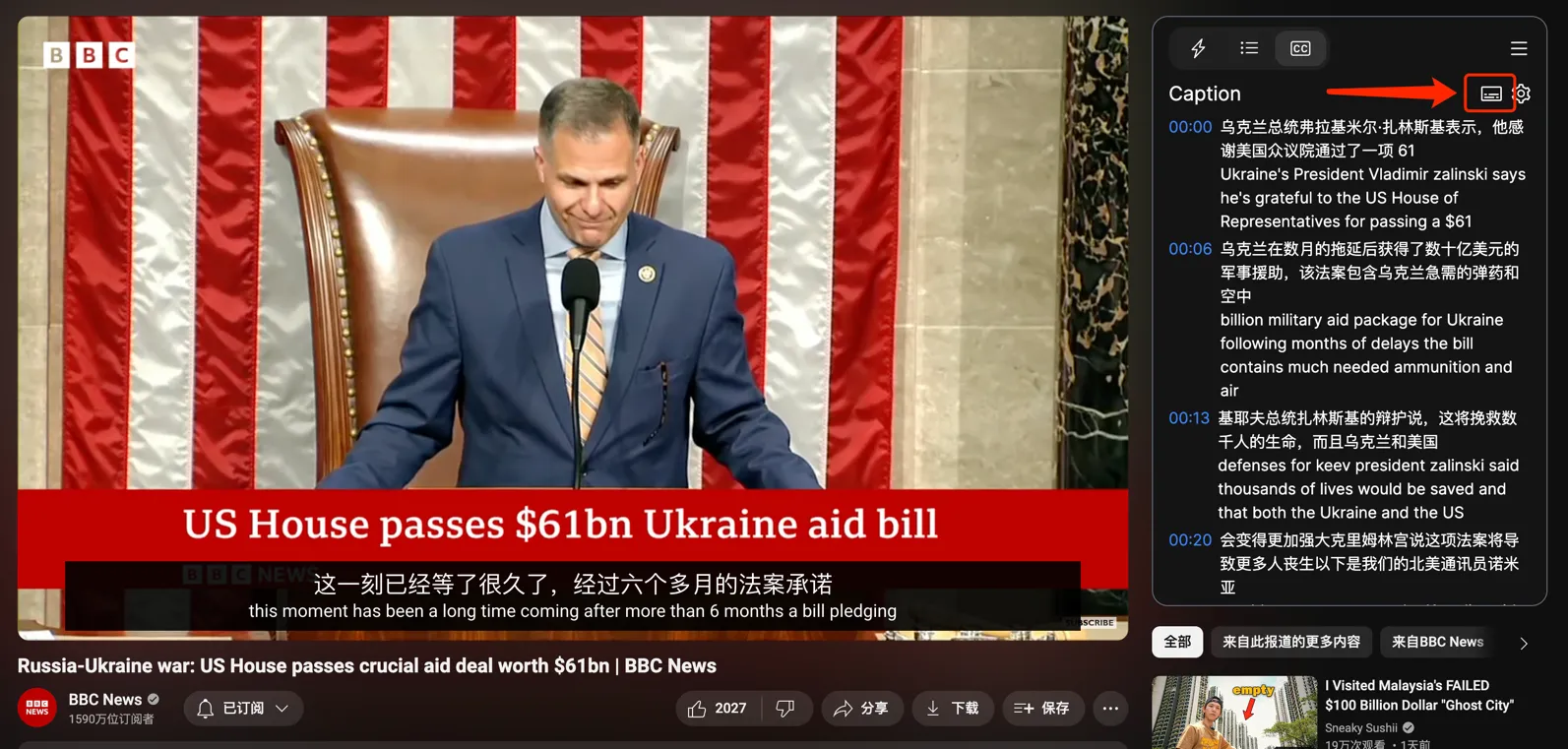
Suinfy was more than a subtitle extension: it also offered video summaries, translation and subtitle download, well suited to anyone learning English.
3.2 Memo.ac
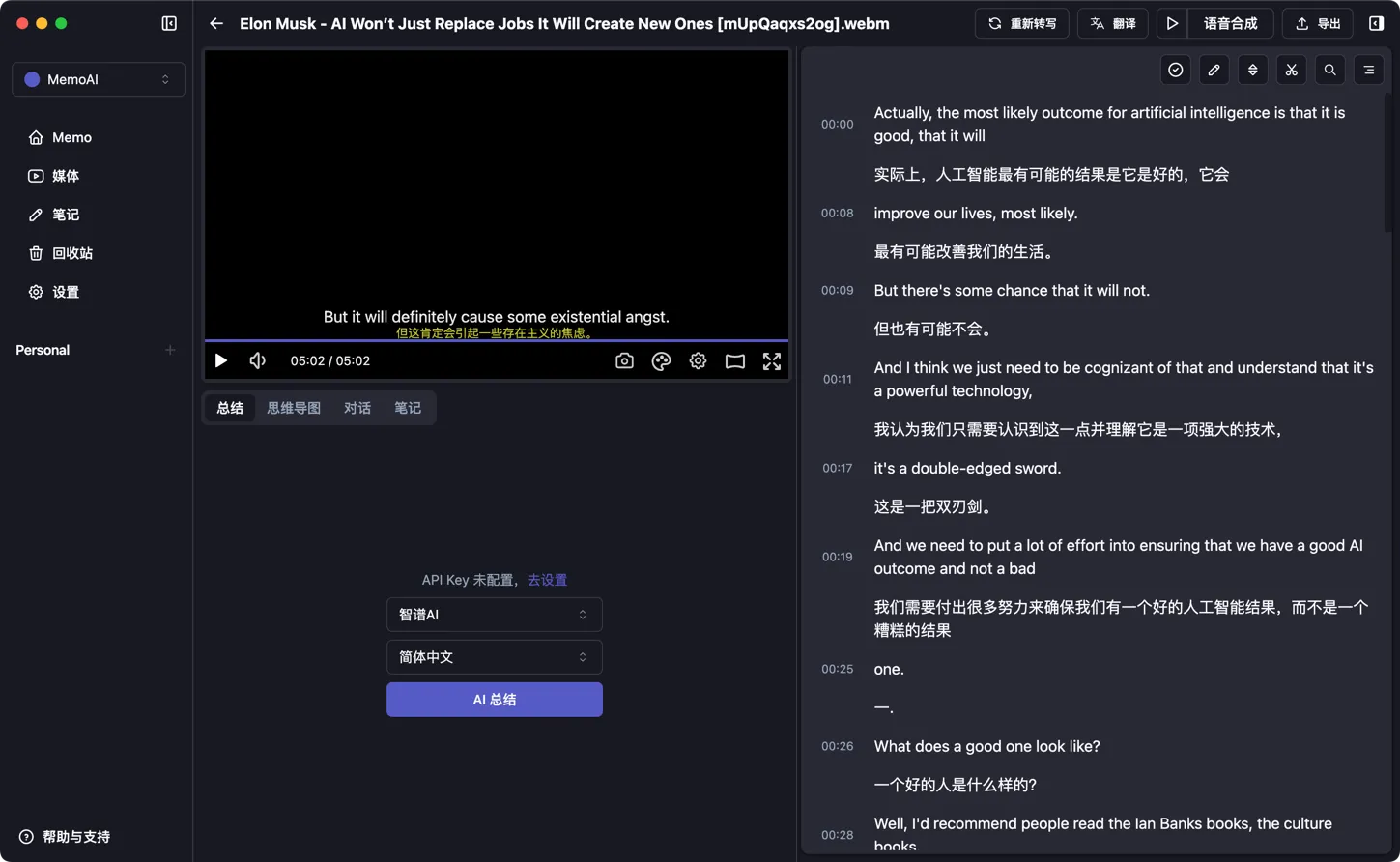
Memo.ac is a desktop app with YouTube download, transcription, subtitle translation, bilingual subtitles and burn-in, well suited to producing bilingual-subtitle videos.
中文版.